
Email providers
Pick a provider once in Email Settings, then every template that uses the Email action sends through it.
CriticalPDF supports four email providers. You configure them in Settings → Email Settings, and every template’s Email action uses the active provider automatically. Switching providers doesn’t require touching your templates.
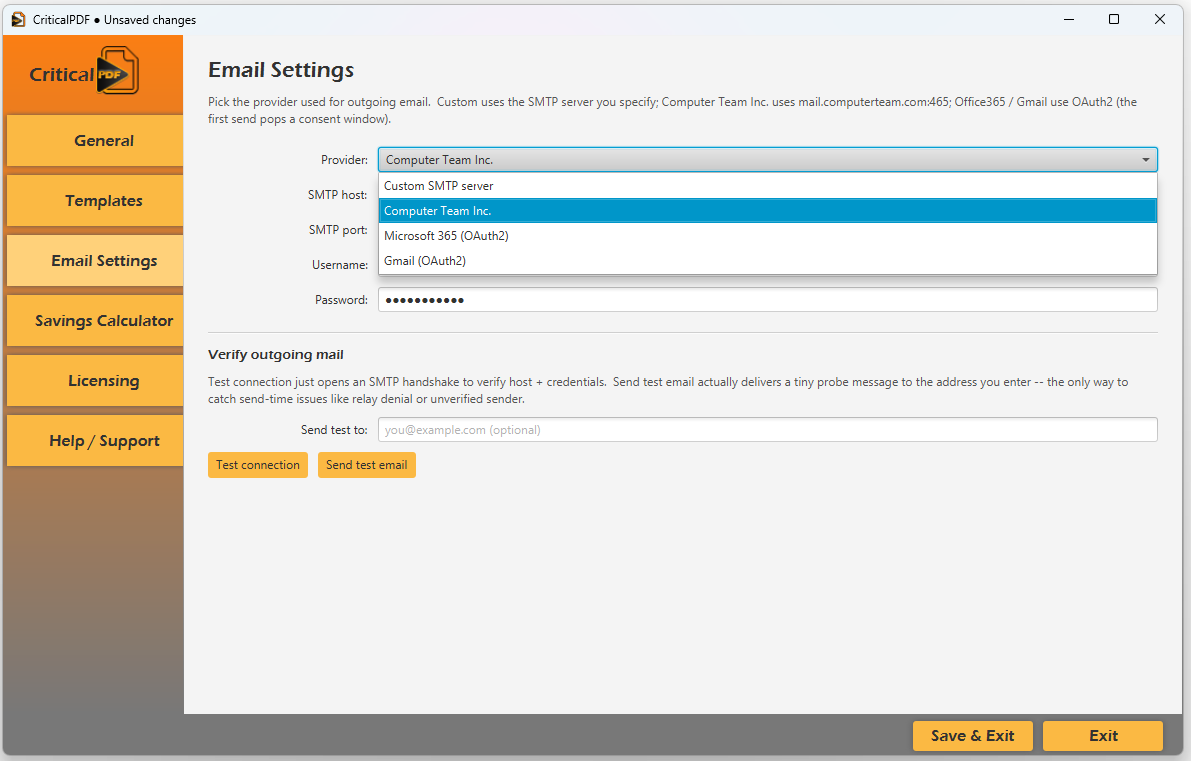
The four options:
| Provider | When to use |
|---|---|
| Custom SMTP server | In-house mail (Exchange on-prem, Postfix, Sendmail, anything that speaks SMTP). |
| Computer Team Inc. | Routes through Computer Team’s hosted relay at mail.computerteam.com:465. Convenient if you don’t want to manage your own SMTP. |
| Microsoft 365 (OAuth2) | Office 365 / Microsoft 365 work or school accounts, plus personal Microsoft accounts. Uses MSAL OAuth — no passwords stored. |
| Gmail (OAuth2) | Google accounts (personal or Workspace). Uses SMTP XOAUTH2 — no app passwords required. |
Custom SMTP server
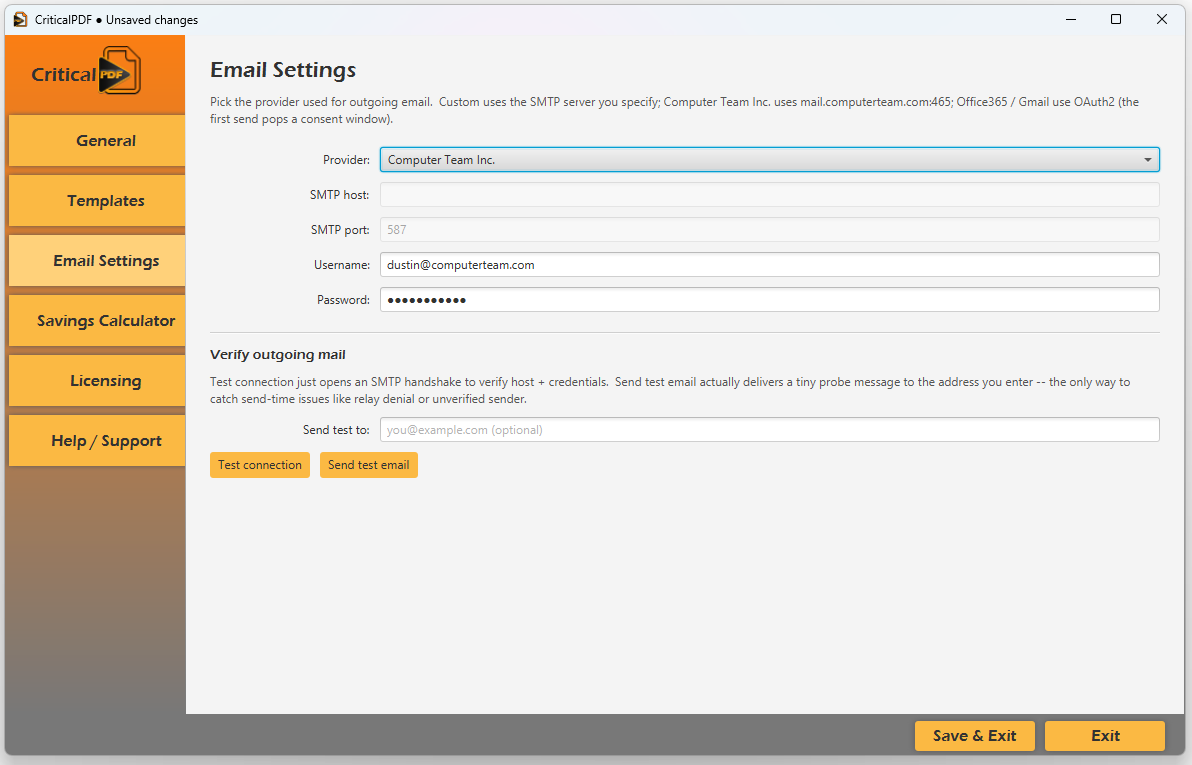
Fields:
| Setting | Example |
|---|---|
| SMTP host | mail.example.com |
| SMTP port | 587 (STARTTLS) or 465 (TLS) |
| Username | criticalpdf@example.com |
| Password | (masked — stored by the app) |
For accounts that require an app password (Yahoo, some Exchange setups, accounts with 2FA), generate one from your mail provider and paste it into the password field.
Computer Team Inc.
The simplest option if you’re a Computer Team customer — pick the provider, save, and outgoing email routes through mail.computerteam.com:465 using your Computer Team account credentials. No SMTP host to look up, no OAuth consent flow.
Microsoft 365 (OAuth2)
Pick the provider and CriticalPDF opens the Microsoft sign-in page on the first send. Sign in with the account you want to send from and approve the Send mail as you permission. A refresh token comes back and is stored by the app — subsequent sends are silent.
To revoke access, visit https://account.microsoft.com/privacy (personal accounts) or your tenant admin’s app consent panel (work/school).
Gmail (OAuth2)
Same flow as Microsoft 365 — pick the provider, sign in on first send, approve the Send email on your behalf scope. To revoke access, visit myaccount.google.com/permissions and remove CriticalPDF.
App passwords are not required. The OAuth flow handles authentication on its own.
Verifying outgoing mail
After configuring a provider, use the two buttons under Verify outgoing mail:
- Test connection — opens an SMTP handshake to verify the host and credentials. Catches host/port mistakes, bad passwords, and TLS misconfigurations immediately.
- Send test email — actually delivers a tiny probe message to the address in Send test to. The only way to catch send-time issues like relay denial or unverified sender.
Run both before sending real captures through a new configuration.
Switching providers
Templates don’t pin themselves to a specific provider — they use whichever provider is active at send time. To switch:
- Email Settings.
- Pick a different provider from the dropdown.
- Fill in the new credentials.
- Save & Exit.
If a delivery fails after a provider switch — for example, the Gmail refresh token was revoked while you were on Microsoft 365 — the job goes into the dead-letter queue and replays once the provider issue is fixed.
Was this page helpful? Let us know.