
Templates
Define one template per kind of document you print. CriticalPDF reads an embedded identifier tag from the capture and routes through the matching template automatically.
A template is a rule that says:
“When a captured PDF contains this identifier, do that with it.”
Open Templates in the sidebar. The left column lists your templates; the right column shows the editor for the selected one.
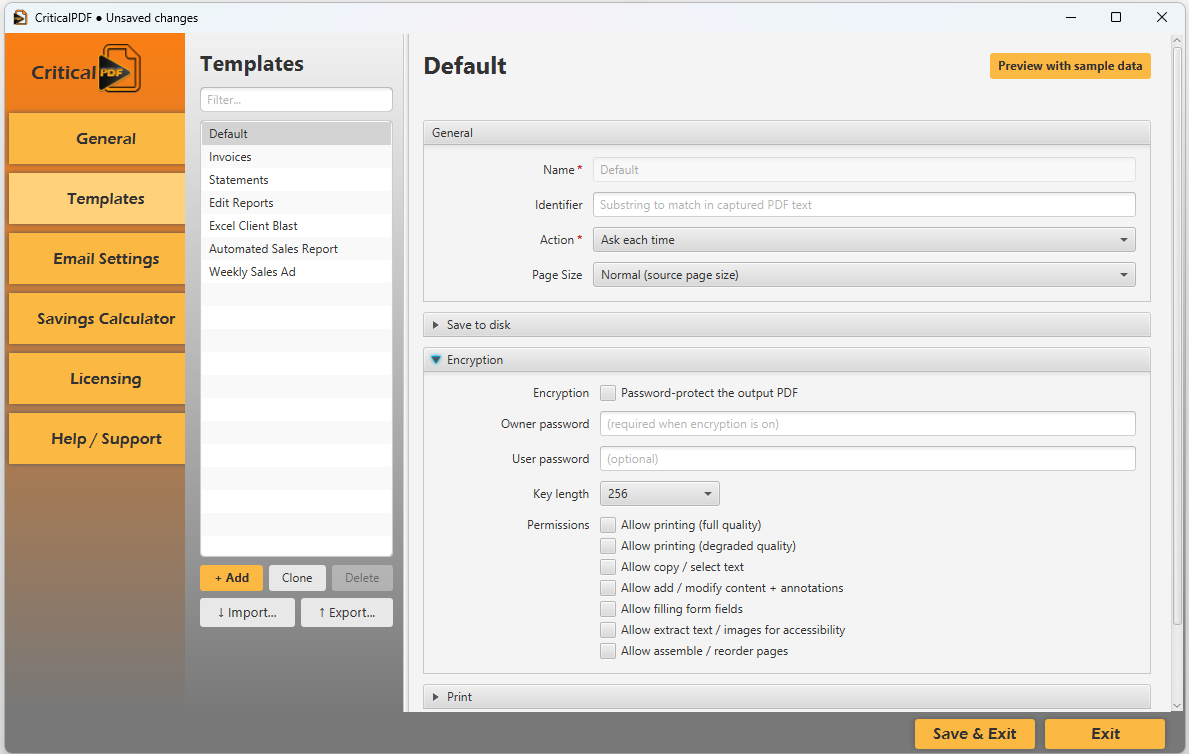
Anatomy of a template
Every template is organized into a General section (always visible) plus collapsible sub-sections for each action type.
General
| Field | Purpose |
|---|---|
| Name | What you see in the template list. Doesn’t affect matching. |
| Identifier | Substring matched against the <0>...</0> tag in the captured PDF text. See matching below. |
| Action | What the template does when it matches: Print, Email, Save, or Ask each time (which surfaces the action buttons in the per-capture review window). |
| Page Size | Default Normal (source page size) — preserves whatever the source app sent. Override only if you need to force a specific size. |
Save to disk
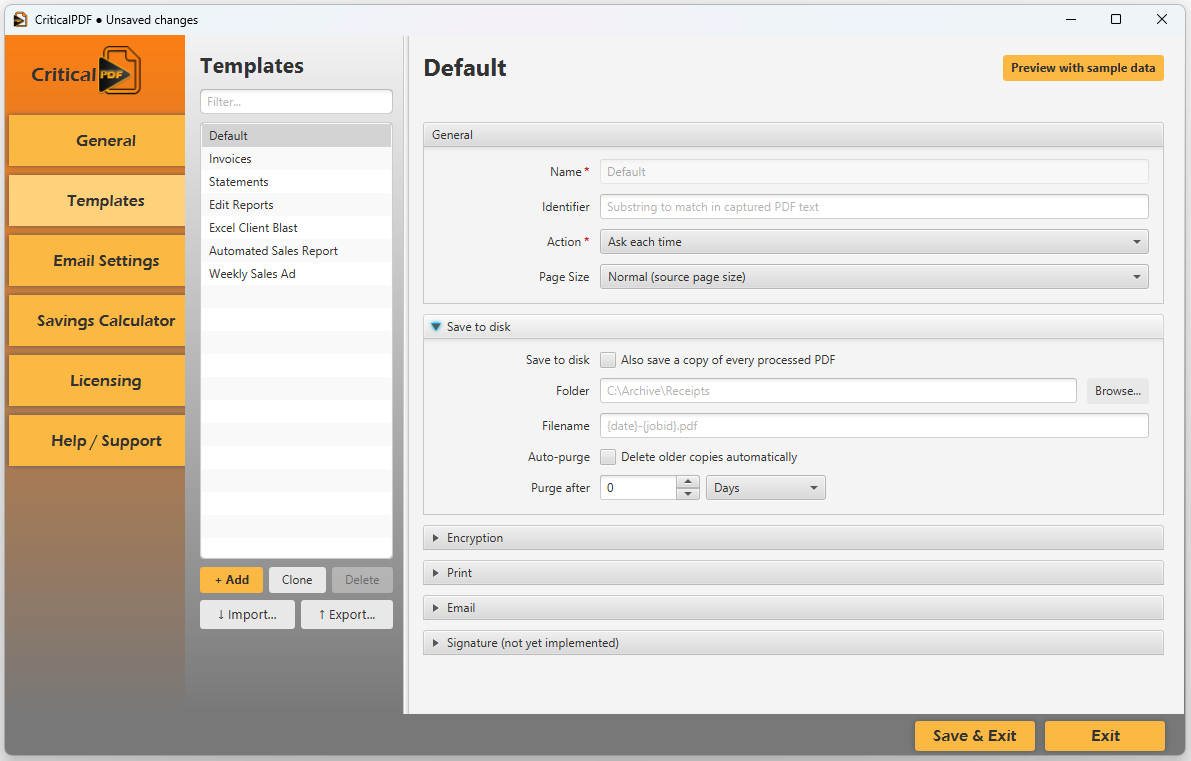
- Also save a copy of every processed PDF — checkbox that turns this action on.
- Folder — destination directory (local path or UNC share).
- Filename — accepts
<n>variable substitution. See variable substitution. - Auto-purge — checkbox to enable scheduled deletion of older copies.
- Purge after — count + unit (Days, Weeks, Months) controlling retention.
Encryption
Per-template AES encryption with granular permissions. See PDF encryption for the full reference.
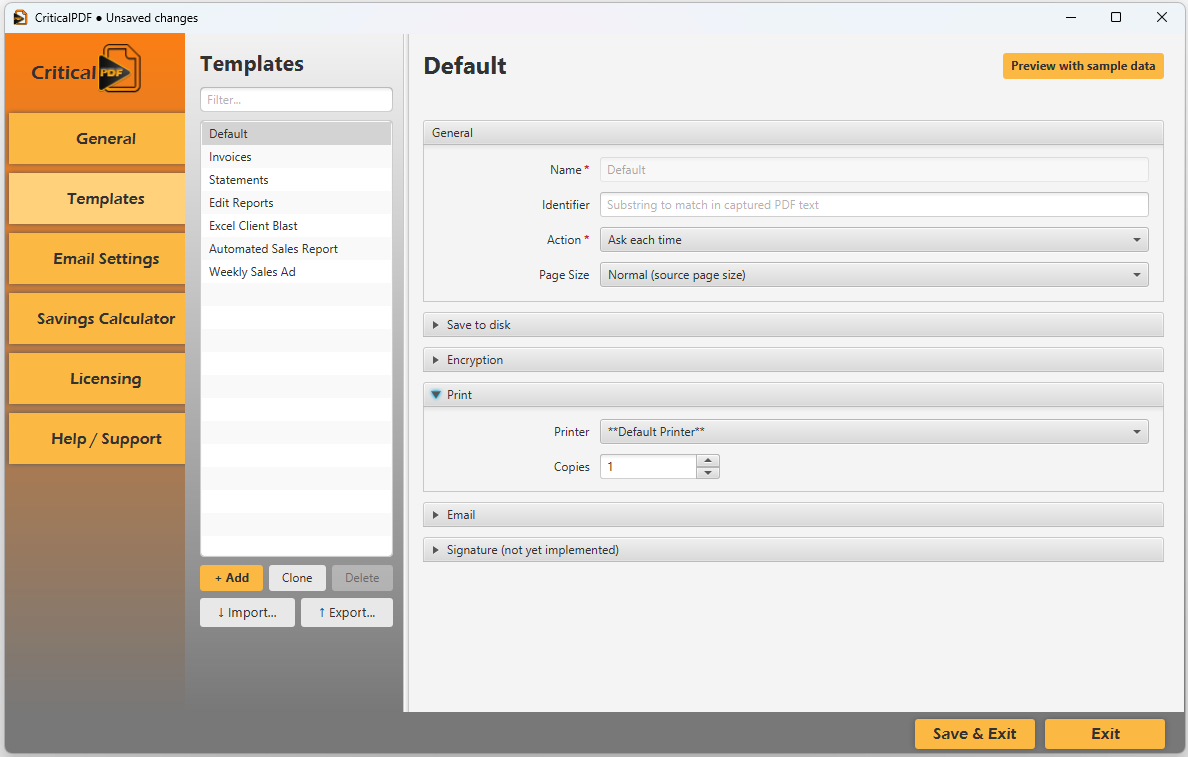
- Printer — pick
**Default Printer**or any installed Windows printer queue. - Copies — how many to print.
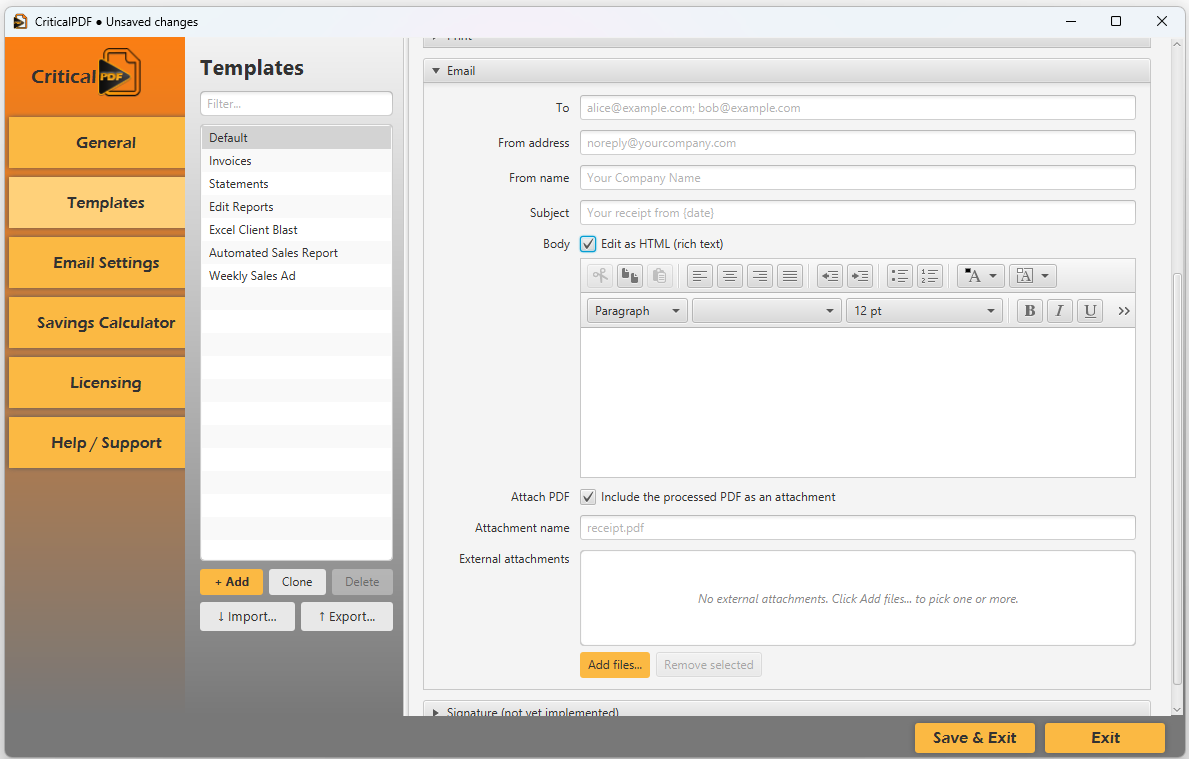
- To, From address, From name, Subject — all accept
<n>variable substitution. - Body — toggle Edit as HTML (rich text) for an in-app rich-text editor with formatting, or leave it off for plain-text mode.
- Attach PDF — include the captured PDF as an attachment.
- Attachment name — defaults to a sensible name; can use variables (e.g.,
invoice-<1>.pdf). - External attachments — pick additional files from disk via Add files… (cover letters, T&Cs, etc.).
Signature
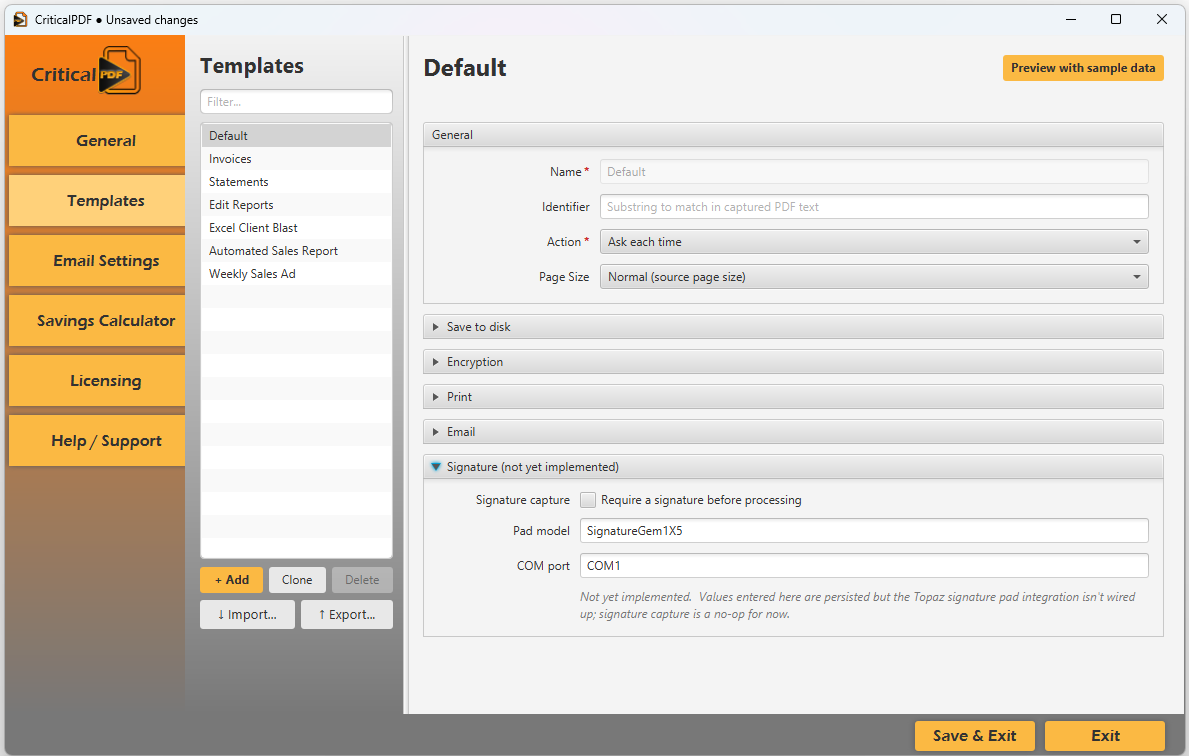
Reserved for Topaz signature-pad integration. Values entered here are persisted but the integration isn’t wired up yet — signature capture is a no-op for now.
Matching
CriticalPDF picks a template by reading the identifier tag from the captured PDF. Anywhere in the printable content of your source document, embed:
<0>Invoice</0>In the Invoices template, set the Identifier field to the substring you want to match (Invoice in this example). When a capture arrives whose <0>...</0> content contains that substring, the template runs.
The identifier tag stays in the PDF exactly as your source rendered it — CriticalPDF reads it but doesn’t modify the document. You make the tag invisible to recipients by formatting it as white-on-white text (size 5 works reliably, and tags can even partially overlap other content). See variable substitution for the full guidance.
If no template’s identifier matches a capture, the Default template runs (which usually sets Action to Ask each time, opening the per-capture review window so you decide manually).
Batch jobs. A single print job can contain thousands of documents — see Process whole print runs in one go. Each split capture matches templates independently, so a 2,000-page invoice run from your ERP can fire 2,000 separate template runs (and 2,000 emails to 2,000 customers) from a single print. A confirmation dialog summarises what’s about to fire before the batch runs.
Editing tips
- Filter — type into the filter at the top of the template list to narrow it down. Useful with many templates.
- Preview with sample data — top-right button on the template editor. Renders a synthetic capture so you can verify the resolved fields without printing anything for real.
- Add / Clone / Delete — bottom of the template list. Cloning is the fastest way to start a new template from a working one.
- Action-aware UI — if you pick
Emailas the action, the Print section greys out, and vice versa. The editor won’t let you silently misconfigure.
Importing and exporting templates
Templates aren’t separate files — they’re stored inside your per-user config.json under a Templates key. That format is key-for-key compatible with the legacy CriticalPDF 1.x layout, which is why 1.x .cpdf exports import cleanly.
The Import… and Export… buttons below the template list move templates between installs as .cpdf files.
- Export — pick one or more templates → output a single
.cpdffile. Secrets (SMTP passwords, OAuth tokens, PDF encryption passwords) are not included. - Import — picks up a
.cpdffile and adds its templates to your list. Name collisions are auto-suffixed (Invoices (2)); malformed entries are skipped with a warning — never a partial-state import.
Was this page helpful? Let us know.