
Service operations
The CriticalPDF Service health panel, log viewer, update controls, and diagnostics tools — all in Help / Support.
The CriticalPDF Service runs in the background and is configured automatically by the installer. You don’t normally need to touch it, but when you do, everything is reachable from Settings → Help / Support in the desktop app.
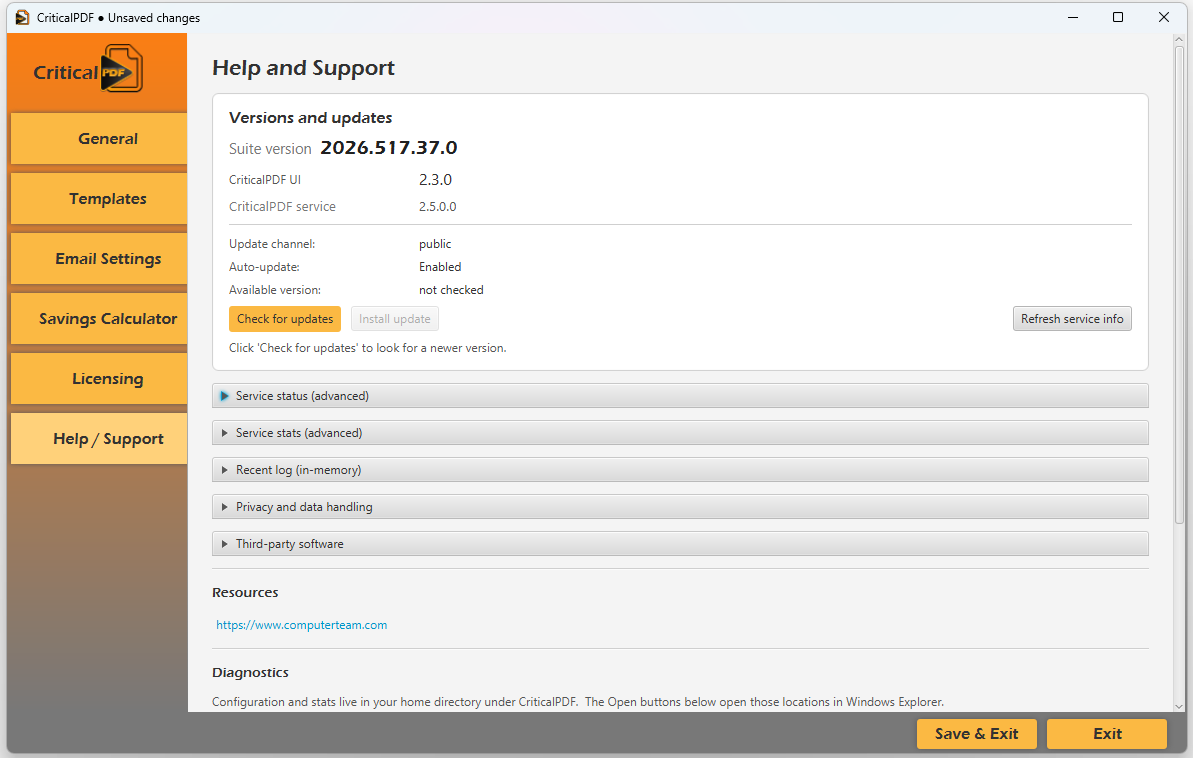
Versions and updates
The top section shows:
- Suite version (date-based, e.g.
2026.517.37.0). - CriticalPDF UI version (the desktop app).
- CriticalPDF service version (the Windows service).
- Update channel (
publicby default). - Auto-update state (
EnabledorDisabled). - Available version — populated after you click Check for updates.
Buttons:
- Check for updates — queries the manifest immediately.
- Install update — enabled only when a newer version is available.
- Refresh service info — re-polls the local service for its current state.
CriticalPDF uses a manifest-driven auto-update system. The service knows where to look for the channel manifest at build time — operators don’t configure the URL and shouldn’t need to know it.
The manifest carries:
| Field | Purpose |
|---|---|
| Suite version | The four-part version compared against what’s installed. |
| Component versions | App and service component versions for diagnostics. |
| SHA-256 | Hex hash of the MSI. The service verifies the downloaded file against this before applying — a mismatch aborts the install. |
| Channel | Which manifest this is (public, beta, …). |
| MSI location | The URL the service downloads from. |
| Publish timestamp + commit | For operator visibility. |
Each MSI is also published with a .sha256 sidecar so operators can verify a manually-downloaded copy without parsing the manifest — the Downloads page links to the sidecar under each release.
The service polls the manifest on startup and every UpdateCheckIntervalHours (default 24); if the manifest version is newer than what’s installed, the service downloads the MSI, verifies its SHA-256, signals a graceful stop, runs the installer silently, and starts the new service. A hash mismatch fails closed — the download is discarded and the existing service keeps running.
Service status (advanced)
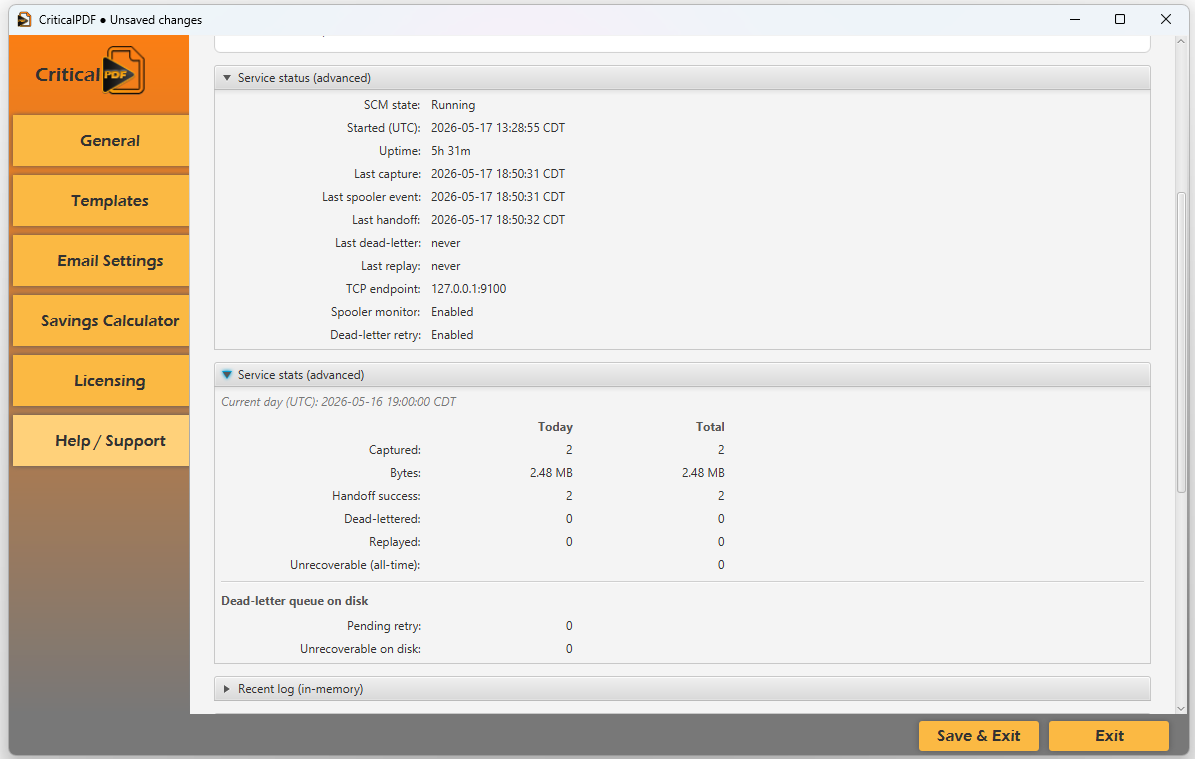
| Field | What it tells you |
|---|---|
| SCM state | Running, Stopped, Starting, Stopping — straight from the Windows Service Control Manager. |
| Started (UTC) | When the service last started. |
| Uptime | Continuous run time since the last start. |
| Last capture | Timestamp of the most recent print captured. |
| Last spooler event | Most recent Win32 spooler notification (independent of whether it produced a capture). |
| Last handoff | Last successful delivery to the desktop app. |
| Last dead-letter | Last time a job had to be sealed for retry. |
| Last replay | Last time a dead-lettered job was successfully replayed. |
| TCP endpoint | Loopback address + port the service is bound to (default 127.0.0.1:9100). |
| Spooler monitor | Whether Win32 spooler notifications are enabled. |
| Dead-letter retry | Whether automatic retry is enabled. |
Service stats (advanced)
The stats panel shows live counters with Today and Total columns:
- Captured — print jobs taken from the spooler.
- Bytes — total bytes captured.
- Handoff success — successful pipes to the desktop app.
- Dead-lettered — jobs sealed for later retry.
- Replayed — dead-letters successfully delivered on a later attempt.
- Unrecoverable (all-time) — jobs that exhausted their retry budget.
Plus the on-disk dead-letter queue size:
- Pending retry — jobs waiting for the next replay window.
- Unrecoverable on disk — jobs that gave up but haven’t been purged yet.
Recent log (in-memory)
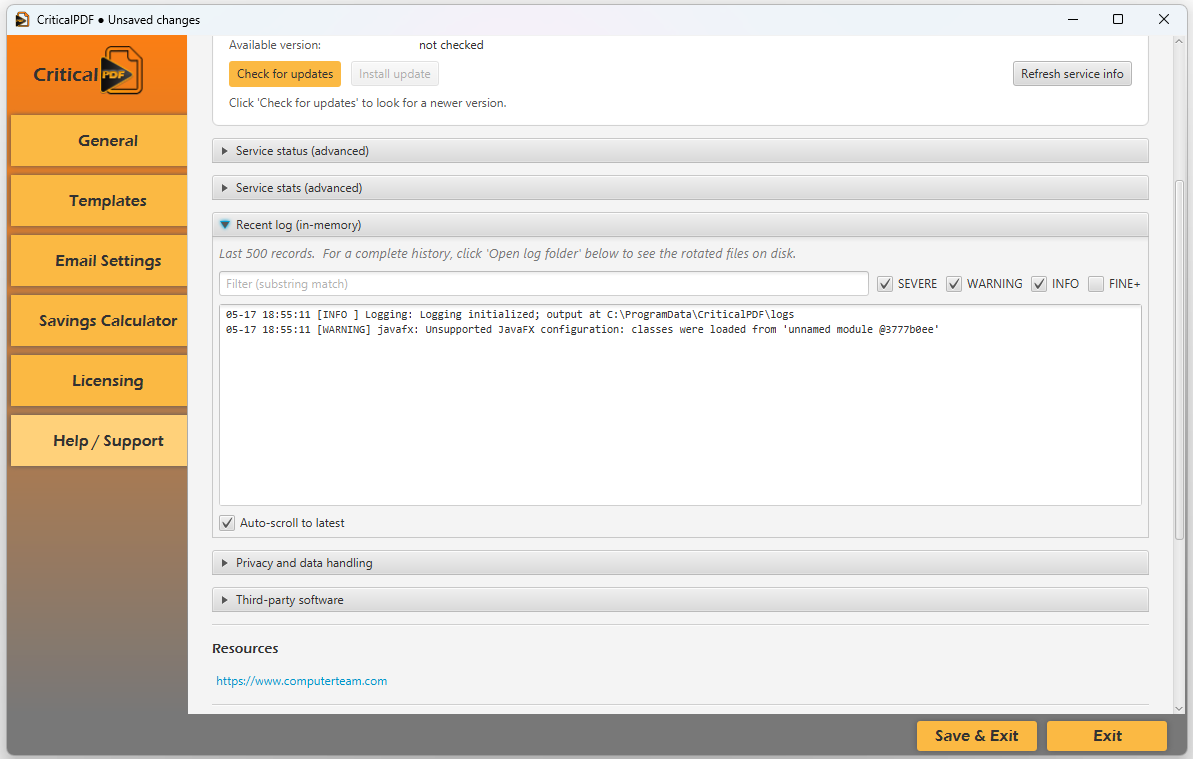
The last 500 log records, filterable in real time:
- Filter — substring match, narrows as you type.
- Severity checkboxes — SEVERE, WARNING, INFO, FINE+ — toggle which levels to show.
- Auto-scroll to latest — checkbox that auto-scrolls as new lines arrive.
For a complete history, use Open log folder under Diagnostics — the rotated log files at C:\ProgramData\CriticalPDF\logs\ go back 14 days.
Diagnostics
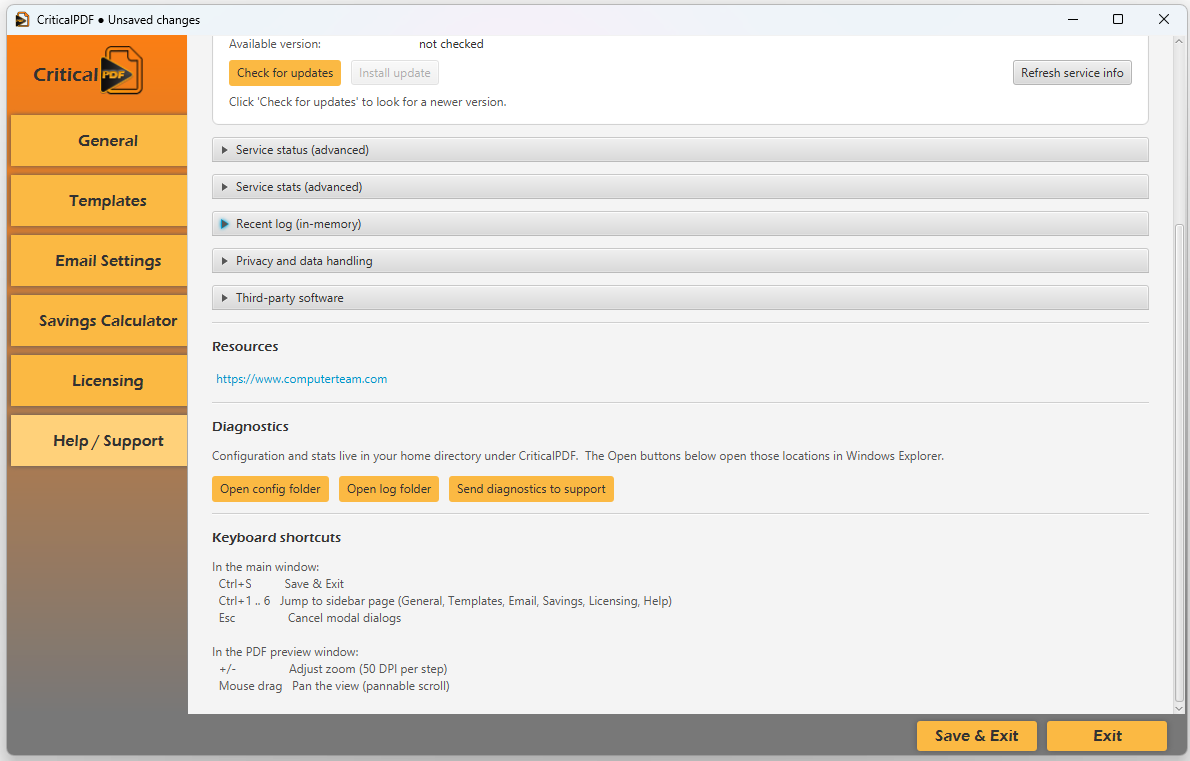
Everything CriticalPDF writes lives under C:\ProgramData\CriticalPDF\ — your per-user config.json in users\<username>\, the machine-wide serviceconfig.json, and the shared stats, logs, error reports, and staged diagnostics. The Open buttons jump straight there in Windows Explorer.
Three buttons:
- Open config folder — Explorer at your per-user config directory,
C:\ProgramData\CriticalPDF\users\<username>\. - Open log folder — Explorer at the rotating service log directory,
C:\ProgramData\CriticalPDF\logs\. - Send diagnostics to support — packages logs + a redacted config snapshot + an environment summary, then pre-fills your default mail client. Review the staged zip before sending — known secret fields are redacted automatically.
Keyboard shortcuts
Listed under Diagnostics for reference. In the main window:
| Shortcut | Action |
|---|---|
Ctrl+S | Save & Exit |
Ctrl+1 … Ctrl+6 | Jump to a sidebar page (General, Templates, Email, Savings, Licensing, Help) |
Esc | Cancel a modal dialog |
In the PDF preview window:
| Shortcut | Action |
|---|---|
+ / - | Adjust zoom (50 DPI per step) |
| Mouse drag | Pan the view |
The service configuration file
The service configuration file lives in the shared data folder:
C:\ProgramData\CriticalPDF\serviceconfig.jsonIt’s auto-generated at install time with sensible defaults. You rarely need to edit it, but the most useful keys to know:
| Key | Default | Purpose |
|---|---|---|
PrinterName | CriticalPDF | The virtual printer queue the service watches. |
TcpPort | 9100 | Loopback port for the desktop-app handoff. |
BindAddress | 127.0.0.1 | Always loopback — never network-reachable. |
OutputFolder | C:\ProgramData\CriticalPDF\InProcess | Where captures land before handoff. |
OnFailureFolder | C:\ProgramData\CriticalPDF\DeadLetter | Where dead-lettered captures are sealed. |
MaxConcurrentConnections | 3 | Cap on simultaneous handoffs to the app. |
ConnectionTimeoutSeconds | 600 | Maximum handoff duration before timing out. |
EncryptionPassword | (random per install) | Symmetric key used to seal dead-lettered captures on disk. |
EnableAutoUpdate | true | Whether the service should self-update on its check interval. |
UpdateCheckIntervalHours | 24 | How often to check for new releases. |
After editing, restart the service to pick up the change:
Restart-Service "CriticalPDF Service"Restarting the service
You shouldn’t normally need to. If you do:
Restart-Service "CriticalPDF Service"On a graceful restart, the service drains in-flight captures and handoffs (up to 55 seconds) before exiting — long enough that an MSI upgrade never truncates a job mid-delivery.
Disabling the service for maintenance
To stop accepting new captures without uninstalling:
Stop-Service "CriticalPDF Service"
Set-Service "CriticalPDF Service" -StartupType Disabled
To bring it back:
Set-Service "CriticalPDF Service" -StartupType Automatic
Start-Service "CriticalPDF Service"
Print jobs queued to the CriticalPDF printer while the service is stopped will sit in the Windows spooler until the service starts again, at which point they’re captured normally.
Was this page helpful? Let us know.