
Variable substitution
Embed marker tags in your source document and CriticalPDF substitutes them into file names, subject lines, and email bodies. One template handles every customer, patient, or order.
CriticalPDF doesn’t try to guess what’s important in your document with regex. Instead, you embed marker tags directly in the content your source application prints — CriticalPDF reads the tag values out of the captured PDF text and substitutes them into the template fields.
How marker tags work
Add a tag like this anywhere in the printable content of your document:
<1>ACME Manufacturing</1>When you print to CriticalPDF, the service:
- Captures the print job and reads its text.
- Finds every
<n>...</n>marker tag in the content. - Makes the captured value available in the template as
<1>,<2>, etc. - Saves / prints / emails the PDF exactly as your source app rendered it — CriticalPDF does not modify the PDF body in any way.
You can use the tags in any template field that supports substitution.
Making tags invisible to the reader
Because CriticalPDF doesn’t strip your tags, you decide how they look in the rendered PDF. The convention is to make them visually invisible while keeping them present in the text layer so CriticalPDF can read them. Any of these work:
- White text on a white background — the most common and reliable approach.
- Tiny font sizes — text as small as size 5 is read reliably.
- Overlapping with other content — tags can sit partially on top of nearby text or graphics and still parse correctly.
- In a corner of the page that recipients won’t look at — useful for tags that don’t need to hide aggressively.
What does not work: setting visibility/display CSS in HTML before print (the PDF text layer needs to contain the tag), using image-only PDFs without a text layer, or placing tags in a header/footer that gets clipped by a non-standard page size.
If you’re not sure your tags are being captured, use Preview with sample data on the template editor — it shows you exactly what CriticalPDF read out of the document.
Tag numbering
| Tag | What it does |
|---|---|
<0>...</0> | Identifier — used for template matching. See Templates. |
<1>...</1> through <49>...</49> | Variables — up to 49 per document, extracted and substituted into template fields. |
<end> | Batch separator — marks the end of one document inside a multi-document print job. See batch jobs below. |
The closing </n> matters
The extractor uses the closing tag to know where a value ends. Open-and-close them properly:
| What you write | What CriticalPDF captures |
|---|---|
<1>John Smith</1> | John Smith |
<1>John Smith (no closing tag) | ignored |
<1></1> | empty string |
One <n>VALUE</n> pair per number, per document — each output gets its own personalised filename, subject, and recipient with no per-document configuration.
A worked Excel example
Every invoice you print from Excel could have a cell on row 1 like this:
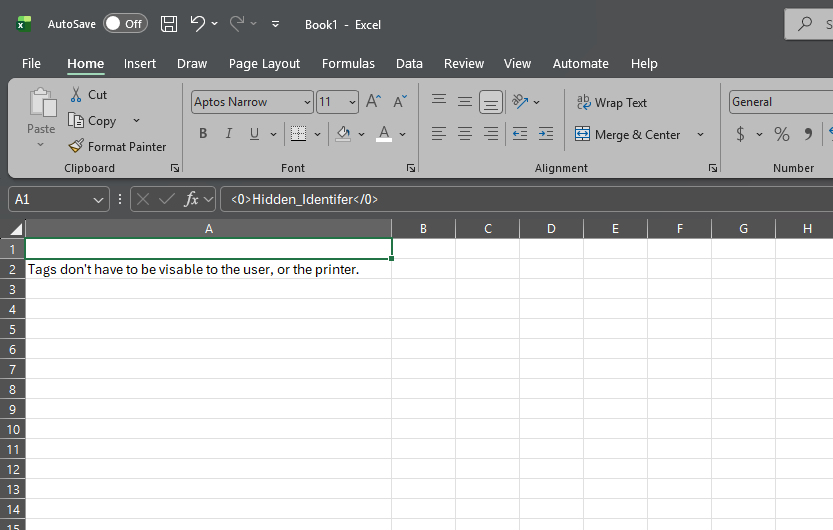
The cell’s value is <0>Hidden_Identifier</0> — visible in the formula bar, but the cell itself uses white text on the default white background so the recipient never sees it. CriticalPDF reads the value from the captured PDF text and uses it to pick the matching template. The cell remains in the printed output exactly as your source rendered it; CriticalPDF doesn’t touch it.
In practice, the format that works most reliably is white text, small font, in any unused cell or text box. The tag just needs to land somewhere in the PDF’s text layer.
Building a real template with variables
Suppose your invoice template includes these hidden marker tags somewhere in the printed content:
| Tag | Captured value |
|---|---|
<0>Invoice</0> | Identifier for matching the Invoices template |
<1>INV-2026-04211</1> | Invoice number |
<2>ACME Manufacturing</2> | Customer name |
<3>billing@acme.example.com</3> | Customer email |
Then in the Invoices template you can use:
| Template field | Value with substitutions |
|---|---|
| Save → Filename | <1>-<2>.pdf |
| Email → To | <3> |
| Email → Subject | Your invoice <1> from Acme Corp |
| Email → Body | Hi <2>,<br><br>Your invoice <1> is attached. |
One template handles every invoice. No regex, no per-document configuration.
Preview with sample data
Use the Preview with sample data button at the top of the template editor to see how your fields would render against a stand-in capture:
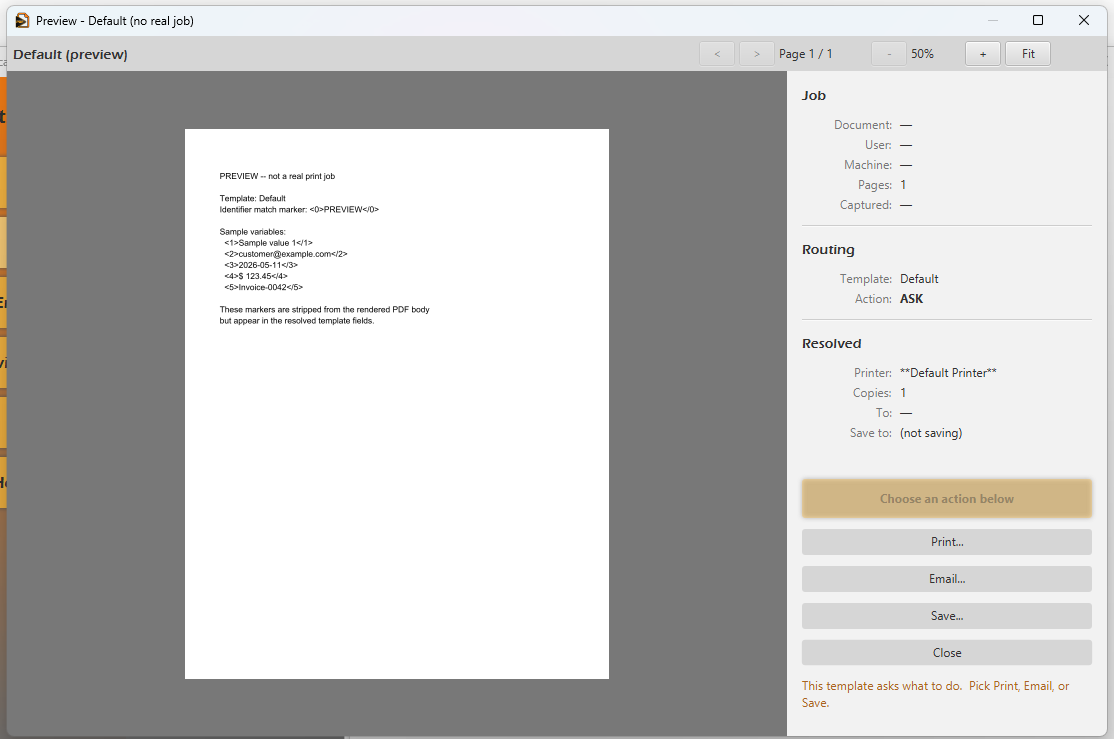
The preview generates a synthetic capture with <1>Sample value 1</1> … <5>Invoice-0042</5> (and a <0>PREVIEW</0> identifier) so you can verify the Resolved panel reads the values you expect before you commit to firing the template against real captures.
Variables in the filename
The Save to disk → Filename field uses the same <n> substitution as every other template field. So if <1> holds the invoice number in your captures, a Filename like <1>.pdf resolves to INV-2026-04211.pdf for each capture.
Process whole print runs in one go
A single print job can contain thousands of independent documents — billing systems, statement runs, mail-merge output. Add an <end> marker to your document source wherever one document ends and the next begins, and CriticalPDF splits the captured print job at every marker. Each sub-document runs through its own template match, variable substitution, and destination — so one Print from your ERP produces dozens or thousands of personalised customer PDFs.
The mechanism is a single <end> marker between documents:
Invoice for ACME Manufacturing
<0>Invoice</0>
<1>INV-2026-04211</1>
<2>ACME Manufacturing</2>
<3>billing@acme.example.com</3>

... body of invoice ...

<end>

Invoice for Globex Corporation
<0>Invoice</0>
<1>INV-2026-04212</1>
<2>Globex Corporation</2>
<3>ap@globex.example.com</3>

... body of invoice ...

<end>
CriticalPDF treats the content between two <end> markers (or from the start of the job to the first <end>) as one capture, with its own identifier, variables, template, and destination.
Practical guidance:
- The
<end>marker follows the same visibility rules as every other tag — white-on-white text at size 5 works reliably. - Each split capture goes through the full pipeline independently — its own template, its own actions, its own dead-letter retry if delivery fails.
- The
<0>...</0>identifier and<1>...</1>variables for a document have to appear before that document’s<end>. Values from a previous document don’t leak forward. - If the job ends without a final
<end>, the last document is captured normally —<end>is a separator, not a terminator. - A job with no
<end>markers at all is treated as a single document.
Batch confirmation dialog
Before a batch fans out to its destinations, CriticalPDF opens a summary screen: N documents detected, X to print, Y to email — with a review each escape hatch if you’d rather inspect them individually instead of running the whole batch unattended. You can dismiss the summary and let it rip, or hold the job for one-by-one review without losing any of the splits.
Was this page helpful? Let us know.